
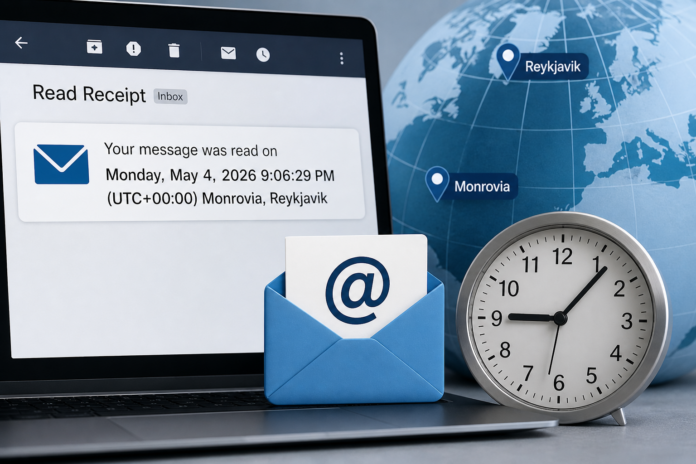

(May 4, 2026) — If you have ever requested a read receipt on an email, you may have noticed something unusual in the response.
Instead of showing a local time, the receipt might say something like:
“Read on Monday, May 4, 2026, 9:06:29 PM (UTC+00:00) Monrovia, Reykjavik.”
At first glance, it can appear that the recipient is in a completely different part of the world. In most cases, that is not what is happening.
What the Time Zone Means
The reference to “UTC+00:00” is tied to Coordinated Universal Time, often abbreviated as UTC. This is the global standard used to keep time consistent across systems.
Locations such as Monrovia and Reykjavik are simply examples of places that use that time standard. They are not necessarily the recipient’s actual location.
Why the Time Appears Incorrect
Email systems rely on device and account settings to determine time zones. When those settings are incorrect or not configured, the system may default to UTC instead of the user’s local time.
This can happen for several reasons:
- The user’s device time zone is not set correctly
- The email account is configured with a default or mismatched time zone
- The email service processes read receipts using server-based time rather than the user’s local time
In these cases, the read receipt reflects the system’s time reference, not the recipient’s physical location.
What It Does Not Mean
Seeing a UTC time stamp does not indicate that the person is in Monrovia, Reykjavik, or any other listed location. It also does not mean the email was read at a different time than expected.
It simply means the system recorded the event using a universal time standard.
Why It Matters
For those who rely on read receipts for business or communication tracking, understanding this distinction can prevent confusion.
A time stamp that appears “off” is usually a technical setting issue, not a sign of unusual activity.
How To Check Your Time Zone Settings
If your email read receipts are showing the wrong time, the issue is often tied to your device or email account settings. Most major email providers include instructions for updating time zone preferences.
You can review official help resources here:
- Gmail — Check your Google Account settings for time-related preferences
- Microsoft Outlook — Time zone settings may be adjusted in account settings or system preferences depending on your version
- Apple Mail — Time settings are typically controlled through your device’s Date and Time settings
- Yahoo Mail — Time zone settings are linked to your Yahoo account profile
For most users, correcting the time zone on their device will also resolve the issue in their email.
Readers who continue to experience issues may need to review both device and account settings or contact their email provider’s support.
